
You adopt several ways to protect your company database from falling prey to any type of intrusion, malware, virus attack, or hardware issue. Still, you cannot completely rule out the possibility of database damage or corruption. As the worst nightmare, a corrupt SQL database can halt your organization’s functioning in its entirety, causing loss of data and reputation.
Therefore, it becomes imperative to chalk out concrete measures to recover a corrupted SQL database at the earliest. Here, we will discuss multiple ways to serve this task by using the SQL Server Management Studio (SSMS) interface. Additionally, we will also find out how professional SQL recovery software, such as Stellar Repair for MS SQL, can prove beneficial in this regard.
How to Recover a Corrupted SQL Database
Several ways can help to recover a damaged or corrupt SQL database. But before trying any of them, make sure to create a healthy and recent backup of the database. This is because some recovery options can cause permanent data loss, and your organization needs a complete database for business continuity. To perform the restore operation, it is better to check the status of your SQL databases by using the command below:
SELECT name, state_desc from sys.databases
This will list all the databases along with their status, whether online, offline, recovery pending, suspect mode, offline, etc. This will ensure the selection of only corrupted databases for the restore, and you can move ahead with the requisite steps to bring it back to working condition.
Database Restore from Backup Using SSMS
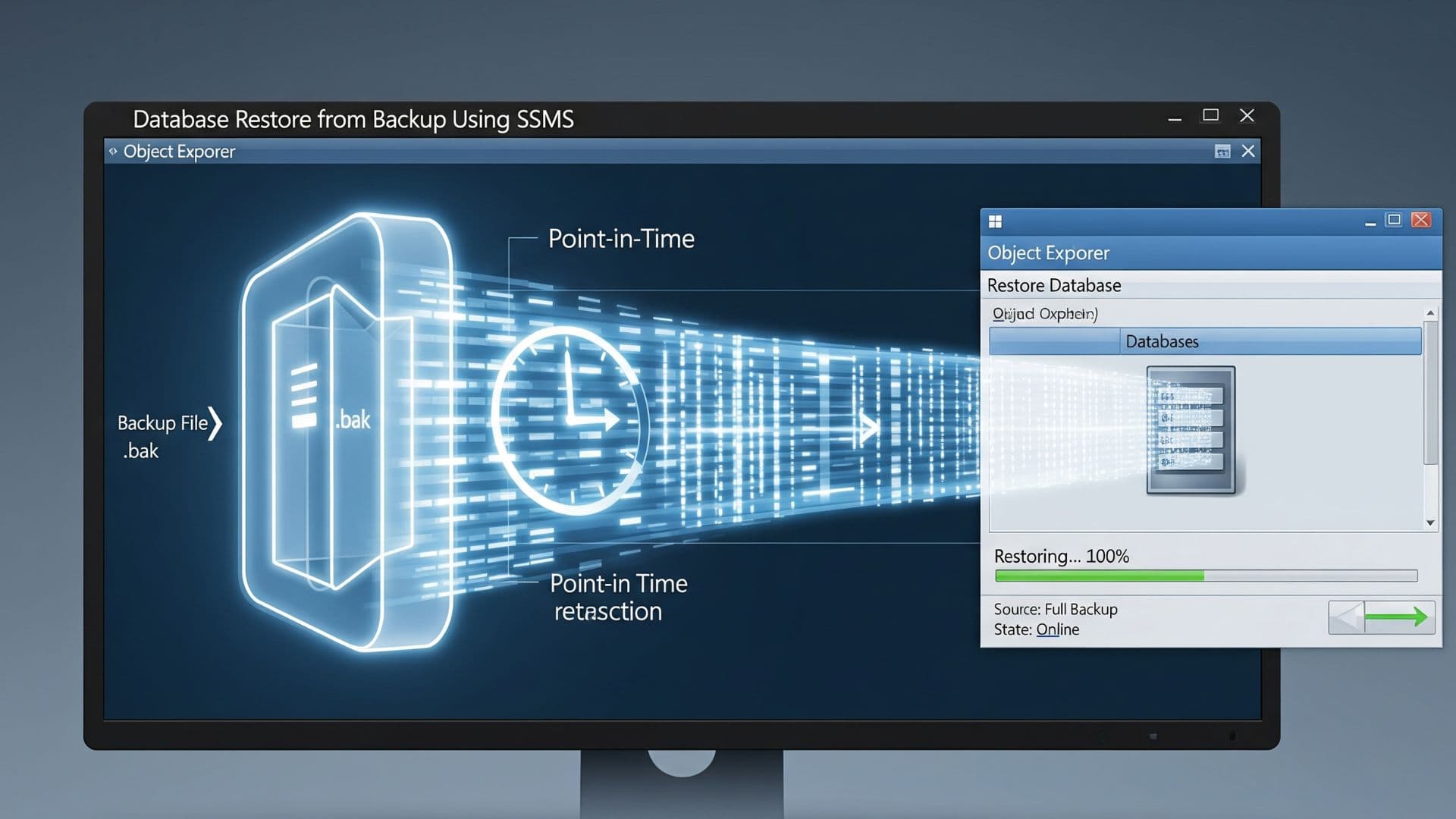
Considering that you already have a backup of the database, you may use it to restore your corrupt database with the help of the SSMS GUI interface. This method is most useful when the database faces a recovery mode issue. To execute it, you should first set the corrupt database in Emergency mode using the T-SQL command ALTER DATABASE [Database_Name] SET EMERGENCY in the SSMS New Query window.
- Launch SQL Server Management Studio (SSMS)
- Connect to your SQL Server instance
- Click New Query from the toolbar at the top
- In the left panel, under Object Explorer, right-click the database you wish to modify
- In the Query Window, type the T-SQL command ALTER DATABASE [Database_Name] SET EMERGENCY;
- Click Execute to run the command.
Once set in Emergency mode, proceed to recover the corrupt SQL database. Here are the steps:
- In the SSMS screen, under Object Explorer in the left pane, right-click Databases > Restore Database
- In the Restore Database dialog box, click General on the left side
- On the right side, click the Database radio button to select the corrupt database you want to restore
- If the backup is on a different server, select the Device radio button to specify the file or device that you wish to restore manually
- In the destination section, click the drop-down corresponding to Database, and you will find the database to restore automatically.
- In the drop-down next to Restore to, leave the default as To the last backup taken or select Timeline to proceed.
- Next, in the Backup Sets to Restore section, select the backup you want to restore and click OK to start the process.
Restoring a Corrupt Database Using the DBCC CHECKDB Command
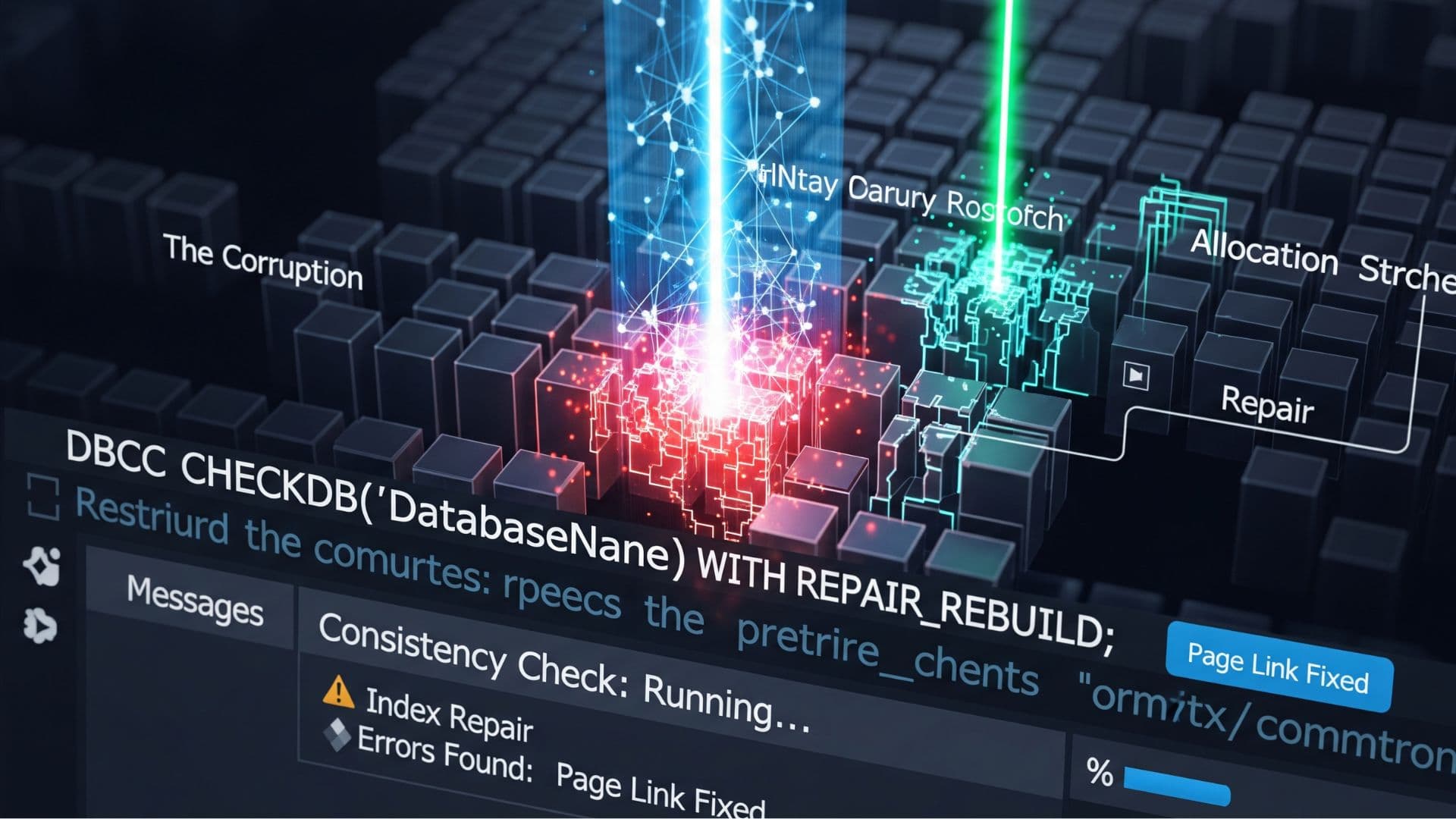
Your database may get stuck in suspect mode, damaging or corrupting the primary filegroup. To restore the database under this situation, use the DBCC CHECKDB command.
- The foremost step in this regard is to set the database to Emergency mode, as already discussed
- Next, check the damage level using DBCC CHECKDB (Database_Name). This will scan the corrupt database and analyze the errors that need resolution
- Set the database to Single_User mode using the below T-SQL command:
Alter Database Database_Name Set SINGLE_USER
REPAIR_FAST option
Command: DBCC CHECKDB (N'Database_Name', REPAIR_FAST) ALL_ERRORMSGS, NO_INFOMSGS;
This command will display all the detected errors, but does not fix corruption. It is obsolete and deprecated, which is why the modern SQL Server versions ignore it.
REPAIR_REBUILD option
Command: DBCC CHECKDB (N'Database_Name', REPAIR_REBUILD) WITH ALL_ERRORMSGS, NO_INFOMSGS;
It checks database integrity, repairs minor corruption to restore the database and runs less risk of data loss. Mostly, it checks non-destructive issues, such as corrupted non-clustered indexes and metadata inconsistencies.
REPAIR_ALLOW_DATA_LOSS option
Command: DBCC CHECKDB (N'Database_Name', REPAIR_ALLOW_DATA_LOSS) WITH ALL_ERRORMSGS, NO_INFOMSGS;
This option helps to fix severe database corruption when all other methods fail. To ensure consistency, this command deletes corrupted row objects and pages, which leads to loss of data. Experts recommend using it only as a last resort.
Use professional SQL recovery software to restore a corrupted database
Third-party software such as Stellar Repair for MS SQL can work effectively in repairing corrupt SQL database files (.mdf and .ndf). Key features include:
- Repairs corrupt and damaged NDF and MDF files
- Recovers missing or accidentally deleted records
- Uses parallel processing to save multiple tables at once
- Supports SQL 2022, 2019, and previous versions
- Resolves Error 823, 824, and 8946
- Recovers SQL Database on Windows and Linux Systems
How does Stellar Repair for MS SQL Work?
Working on this professional software is simple. Download it from the Stellar Info website, install it, and follow the self-explanatory steps. The company offers Corporate, Technician, and Toolkit editions based on your requirements.
Conclusion
While working on SQL databases, severe corruption can halt your business. Admins usually prefer restoring from a recent healthy backup. If that fails, DBCC CHECKDB options like REPAIR_REBUILD or REPAIR_ALLOW_DATA_LOSS are used, though the latter carries high risks of data loss. To overcome these hurdles, professional tools like Stellar Repair for MS SQL provide a more reliable and automated way to restore your data safely.